Saturday, 18 April 2015

Chart of Depreciation

Chart of Depreciation


Definition

The chart of depreciation contains the list of defined depreciation areas. It also contains rules for the evaluation of assets that are valid in a given country or economic area. Each company code is allocated to one chart of depreciation. Several company codes can work with the same chart of depreciation. The chart of depreciation and the chart of accounts are completely independent of one another.

Depreciation is a non cash expenditure which is allowed to be charged to Profit & Loss Account. In India, the depreciation allowed under companies act and the Income tax act are different. This requirement can be met by creating two different depreciation areas.


Implementation Consideration

SAP supplies typical reference charts of depreciation for each country. They have different depreciation areas and depreciation keys depending on that country’s specific requirements. You cannot use these charts of depreciation directly. You must create your own chart of depreciation by copying the reference chart of depreciation. Delete any depreciation areas that are not needed.


Creating Chart of Depreciation

IMG Path: Financial Accounting (New) > Asset Accounting > Asset Accounting (Lean Implementation) > Organizational Structures > Copy Reference Chart of Depreciation/Depreciation Areas

We can’t create a new Chart of depreciation from the scratch. We have to copy the country specific reference Chart of Depreciation provided by SAP to create a new one.


Specify Description of Chart of Depreciation

Change the name of Chart of Depreciation here.


Assign to Company Code

The next step in Chart of Depreciation is assignment to Company Code

IMG Path: Financial Accounting (New) > Asset Accounting > Asset Accounting (Lean Implementation) > Organizational Structures > Assign Chart of Depreciation to Company Code

Here we can assign the newly created Chart of Depreciation to the Company Code. One Chart of Depreciation can be assigned to multiple Company Codes.

Once Chart of Depreciation is assigned to Company Code, we can start working on the same.

Reference Material


Tags#

Assign Chart of Depreciation, SAP Chart of Depreciation, 

G/L Account Master Data

G/L Account Master Data

Please refer SAP Chart of Accounts before starting on this part of Master Data.


The G/L Account Master data is divided into following two parts:


Chart of Accounts Data

This part contains information about G/L Account that will not change from company code to company code and will be constant for all.

Company Code Data

This part contains information about G/L Account that will be relevant to Company Code. This can be maintained separately for every company code after extension of G/L Account.


The Chart of Accounts data includes:


Account Number

Enter the appropriate G/L Account number as per numbering maintained for Account Groups.

Account Group

Select the appropriate Account Group from drop down list available.

Nature of Account

Select if this is Profit & Loss or Balance Sheet Account

Short Text

Maintain short text for the G/L Account. Please maintain some logical text here as many reports show this text against the G/L account number.

Long Text

Enter complete description of the G/L account.


The major fields in company code data are explained below:


The account currency

G/L account will be posted with currency assigned in master data only. In case of G/L with foreign currency will be posted in foreign currency only and then system will convert in to local currency based on exchange rate maintain in the system. It also helps to revaluate open items in foreign currency.

Balances in local currency only indicator

This indicator is set for clearing accounts, to clear line items in various currencies with one local currency amount and without posting any exchange rate difference that may occur.

Tax Category

This field determines if the G/L Account is tax relevant, a tax account or a G/L where specific type of tax will be posted. This field has a drop down list from where one can select the appropriate indicator. Following options are available for selection:

-              Only input tax allowed
+             Only output tax allowed
*             All tax types allowed
<             Input Tax Account
>             Output Tax Account

Apart from above options, system shows tax codes, which can also be selected. In this case, system will not allow the user to post document with any other tax codes in the G/L account.

Posting without tax allowed

If this field is selected it indicates that the account can still be posted to even if a tax code has not been entered.

Reconciliation for account type

The reconciliation accounts are defined by specifying in the G/L master data the account type for which the account is used. When there is a posting to an account in the sub-ledger, the system automatically posts to the corresponding reconciliation account. The accounts for receivables and payables are typical reconciliation accounts. Using the reconciliation account procedure, it is possible to create a balance sheet and a profit and loss statement at any time, since the amounts that are posted to the sub-ledger accounts are also posted automatically to the general ledger.
During regular reconciliation, it is checked whether the balance of the reconciliation account corresponds to the balance of the corresponding sub-ledger accounts. Reconciliation accounts are defined by specifying in the G/L account master record the account type (such as fixed assets, vendor or customer) for which the account is to be used. In this way, the account can only be assigned to accounts in the corresponding sub-ledger. The assignment of the sub-ledger account to a reconciliation account is set in the master record of the sub-ledger account. It is not possible to post to reconciliation accounts manually from the general ledger.


Open item management

If this indicator is set it mark the line item as open or cleared. If this field is selected, the system starts treating every posted document as open item. The items are to be cleared by the user either manually or automatically against other line items.

In case of these G/L accounts the balance is always amount equal to the total of open items. The line item indicator has to be activated if open item management is to be used.

Line item display

For an account defined with line item display, all items that have been posed to this account are displayed if they have not been archived.

Note: Please use Line Item and Open item Management options with care, as it may cause the system to store additional data and also activation/deactivation of these indicators after posting of documents may cause inconsistency.

Sort key

It specifies which entry the system transfers from the document header or from the line item to the Allocation field on the date of posting. After the value is transferred it is helpful to clear or search items on the account according to the Allocation field value. 

Field status group

The field status group specified in the G/L account controls which fields are displayed when posting transaction to a G/L account. A field may be suppressed, required or optional during transaction postings.

Post Automatically only

Set this option for the G/L accounts where no manual transactions are to be posted. This indicator plays a very vital role to control the postings in any G/L accounts.

For e.g. all Inventory accounts should be marked as Post Automatically only, this will avoid any difference in FI-MM reconciliation (T Code MB5L)

Recon account ready for input


This indicator is applicable in case of reconciliation accounts. If this indicator is activated, system allows the user to change the reconciliation account for the entry during document processing. In order to make this functionality work, you need to assign the alternate G/L accounts in customizing. IMG Path: Financial Accounting (New) > Accounts Receivable and Accounts Payable > Business Transactions > Postings with Alternative Reconciliation Account > Define Alternative Reconciliation Accounts


Reference Material


Tags#

Automatic posting in General Ledger in SAP, SAP Chart of Account data of G/L, SAP Company Code Data of G/L, SAP General Ledger Master Data, SAP Post Automatically, SAP Recon Account Ready for Input, 

Friday, 17 April 2015

Company Code Global Parameters (Part II)


Continued from Part I

Fields under Processing Parameters


Pstng period variant

Enter the Posting Period Variant relevant for the Company Code.
Please refer Posting Period Variant for further information.

Max. exchange rate deviation

Enter the maximum exchange rate deviation in percentage

CoCd -> CO Area

This field is not editable. The system assigns number 1 in case where the Company Code is equal to Controlling area and in case of assignment of multiple company codes to single controlling area, system assigns no. 2 here.


Negative Postings Permitted

In some countries, the regulations do not allow increase of value on opposite side of account in case of reversal. In such cases, the reversal is shown as reversal posting on the same side of account if this indicator is activated. This indicator works in conjunction with the Negative posting parameter in document type. For e.g. the Reversal of debit amount is shown as negative amount on the debit side of the account, instead of showing on the credit side.

Business Area fin. Statements

This indicator should be activated if Profit & Loss & Balance Sheet is are to be drawn at Business Area Level. If this indicator is set, the field Business Area is always ready for input during document posting regardless of field status of Posting Keys/Accounts.


Propose Fiscal Year

This indicator, if set default fiscal year which is open for editing while document posting.


Define Default value date

Indicates that the current date is used as the default value for the value date when entering line items.


No forex rate diff. when clearing in LC

Indicates that when items in foreign currency are cleared in local currency, the local currency amount stored in the document is used asthe amount to be cleared.


Purchase acct proc.

Specifies that purchase account management is active in the system.


Reference Material:


Tags#
SAP Company Code Global Parameters, 

Document Splitting (Part II)

Document Splitting (Part II)

Continued from Part I

Step VI

IMG Path: Financial Accounting (New)>General Ledger Accounting (New)>Business Transactions>Extended Document Splitting>Define Document Splitting Method

In this activity we create document splitting method. This method determines how individual item categories are dealt with. Standard methods provided by SAP are generally sufficient.


Step VII


IMG Path: Financial Accounting (New)>General Ledger Accounting (New)>Business Transactions>Extended Document Splitting>Define Document Splitting Rule

This is a very important setting to understand. Here we assign the item categories to the combination of Document Splitting Method, Transaction and Variant. 

This setting works in two parts, Item Categories to be edited and base item categories.

Item categories to be edited are the item categories (G/L Accounts) which do not have the account assignment object (Profit Centre/Business Area) and depend on the item categories (G/L Accounts) assigned under Base Item Categories.

Base Item Categories are the item the item categories (G/L Accounts) which have account assignment object (Profit Centre/Business Area) and they pass it to the item categories to be edited.

For e.g. the combination of Splitting Method “0000000012” Business Transaction “0300” and Transaction Variant “0001” i.e. Vendor Payment have following Item Categories that can be edited:

01100    Company Code Clearing
01300    Cash Discount Clearing
03000    Vendor
05100    Taxes on Sales/Purchases
05200    Withholding Tax

The above item categories i.e. G/L Accounts do not have any profit centre/business area in line item and have to depend on following base item categories assigned to every Item Category:

01000    Balance Sheet Account
01100    Company Code Clearing
01300    Cash Discount Clearing
05100    Taxes on Sales/Purchases
05200    Withholding Tax
06000    Material
07000    Fixed Assets
20000    Expense
30000    Revenue


Step VIII


IMG Path: Financial Accounting (New)>General Ledger Accounting (New)>Business Transactions>Extended Document Splitting>Assign Document Splitting Method

In this section, we assign the Document Splitting method that will be applicable. Here we also activate inheritance and assign constant (default characteristics)


Step IX

IMG Path: Financial Accounting (New)>General Ledger Accounting (New)>Business Transactions>Extended Document Splitting>Define Business Transaction Variants

This is another important setting where item categories are assigned to the business transaction. Here we can specify if any particular item category (G/L account) is mandatory in document splitting.

For e.g. Item Category vendor is mandatory for Business Transaction 0300 i.e. Vendor Invoice. This means the vendor invoice can’t be processed without vendor line item.


Reference material


Tags#

document splitting inheritance, document splitting method, document splitting rule, extended document splitting, SAP document splitting,

Document Splitting (Part I)

Document Splitting (Part I)


Background

Document splitting is a feature introduced by SAP in New G/L Accounting. This feature was introduced to do away with the users’ requirement to transfer the balances of Balance Sheet items at period ends.

Document Splitting automatically splits the line items based on the dimensions configured or to effect zero balance setting. It creates additional lines for the same.

Given below is the list of dimensions that can be set for splitting:

Segments
Profit Centres
Business Areas

Use
The document splitting helps in drawing financial statements at above dimensions on real time basis. For e.g. the Balance Sheet can be drawn at Business Area level, which may be one of the requirement of Management.


Implementation Consideration

The functionality of Document Splitting needs following assignments/configurations


Step I

Specifying the characteristics for which splitting is to be performed:

IMG Path: Financial Accounting (New)>General Ledger Accounting (New)>Business Transactions>Document Splitting > Define Document Splitting Characteristics for General Ledger Accounting

This is the first and foremost important step in document splitting. In this step we define the characteristics for which document splitting needs to be done. Here we have to define the following

Fields: Business Area/Profit Centre/Segment

Zero Balance
Activating this indicator will check the transactions values to total to zero. If the total of is not zero, then the system generates additional line items in “General Ledger View” of the document.

Partner Field
If you specify a partner field, a sender/receiver relationship is thendocumented in the additionally created clearing lines.


Mandatory Field
This indicator verifies every line item for the values for characteristics. If any of the values is missing then system throws error “Balancing field ______ in line item ____ not filled”


Step II

G/L Accounts

IMG Path: Financial Accounting (New)>General Ledger Accounting (New)>Business Transactions> Document Splitting > Classify G/L Accounts for Document Splitting

In this step, we assign Item Categories to G/L Accounts. The item category assigned to a G/L account determines the nature of G/L Account.

Note: The numbering of G/L Accounts in Chart of Accounts becomes very critical, as one can assign item category to a particular number range of G/L Accounts. For e.g. all the G/L Accounts starting from 21400000 to 21499999 shall be assigned to Category “04000” i.e. Bank account.


Following Item Categories are available in standard system:

Cat.      Desccription
01000    Balance Sheet Account
01001    Zero Balance Posting (Free Balancing Units)
01100    Company Code Clearing
01300    Cash Discount Clearing
02000    Customer
02100    Customer: Special G/L Transaction
03000    Vendor
03100    Vendor: Special G/L Transaction
04000    Cash Account
05100    Taxes on Sales/Purchases
05200    Withholding Tax
06000    Material
07000    Fixed Assets
20000    Expense
30000    Revenue
40100    Cash Discount (Expense/Revenue/Loss)
40200    Exchange Rate Difference
80000    Customer-Specific Item Category


Step III

Document Types

Financial Accounting (New)>General Ledger Accounting (New)>Business Transactions> Document Splitting > Classify Document Types for Document Splitting

In this step, we assign every document type to Transaction and Variant.

List of Transactions that can be assigned to the document types

0000       Unspecified posting
0100       Transfer posting from P&L to B/S account
0200       Customer invoice
0300       Vendor invoice
0400       Bank account statement
0500       Advance tax return (regular tax burden)
0600       Goods Receipt for Purchase Order
1000       Payments
1010       Clearing transactions (account maint.)
1020       Resetting cleared items

The combination of transaction and variant determine the splitting method to be used during document splitting process. The transaction and variant also identifies the type of accounts allowed in the document during document splitting. Refer Document splitting Rule section in the post.

For e.g. the accounting transaction 0200 (customer invoice), variant 0001 (standard), is delivered. In this accounting transaction, the following item categories are allowed: customer, value added tax, withholding tax, expense, revenue, exchange rate differences, and company code clearing.


Tip

SAP system comes with this assignment for standard document types. In case of customized document types, the assignment should be done by referring relevant standard document type. For e.g. if we create a customized document type for Bank Receipt, then the assignment done for standard document type KZ should be used for the new document type.


Step IV

Zero Balancing
Financial Accounting (New)>General Ledger Accounting (New)>Business Transactions> Document Splitting > Define Zero-Balance Clearing Account

Here we can define the account assignment objects for which we want system to have zero balance setting, by doing this we ask the system to verify if the balance of account assignment object (balance at the level of Business Area/Profit Centre/Segment) is zero. If system does not find the balance to be zero, then it generates additional line items to make the balance zero.

Note: A G/L Account should be created to assign for zero balance functionality.


Step V

Activating Document Splitting

IMG Path: Financial Accounting (New)>General Ledger Accounting (New)>Business Transactions> Document Splitting > Activate Document Splitting

In this step we activate Document Splitting functionality by assigning the Document Splitting Method.

Further, following options are available at this screen:

Inheritance: With this option, system forwards the characteristics from the lines which contain them to the lines which do not.

For e.g. in case of Vendor invoice booking, the Profit Centre is passed from expense line items to vendor line items.

Standard A/c. Assignment

This option if activated along with Constant, the characteristics under the Constant are forwarded to the line items without characteristics. If this option is activated alongwith Inheritance, system forwards the characteristics as per Inheritance as explained above.

Tags#

Account Assignment Category, Balancing field profit centre, Business Transaction Variant, document splitting, SAP document splitting, 

Thursday, 9 April 2015

Company Code Global Parameters (Part I)

Company Code Global Parameters (Part I)


T Code: OBY6

Use

The Company Code Global Parameters is a screen where many configurations/assignments related to company code can be done in one place.

This also works as an overview of SAP’s important global specifications and helps you analyse the same.

Implementation Consideration

The screen is divided into two parts viz.
Accounting Organization (Part I)
Processing Parameters (Part II).

Fields under Accounting Organization

Chart of Accounts
Assign the appropriate Chart of Accounts here. This is very important assignment. Please refer Chart of Accounts for more information.

Note: The Chart of Accounts is assigned to Company Code and Controlling Area as well. Company Code can be assigned to a Controlling Area only when both have same Chart of Accounts.


Company
Assign the Company here.

Note: Company is different organizational unit than Company Code.


Credit Control Area
Assign the Credit Control Area here. Assignment of Credit Control Area becomes very important from credit control point of view. Refer Credit Control Area for more information.


Fiscal Year Variant
Assign the Fiscal Year Variant here applicable for the Company Code. Please refer the link Fiscal Year Variant for more information.


Company Code is Productive
This radio button should be marked once company code is productive. This button ensures that the standard data deletion programs of SAP do not work in the production environment.


Reference Material


Sunday, 5 April 2015

Posting Period Variant

Posting Period Variant


In Financial Accounting the financial statements can be drawn monthly, quarterly, semi annually or annually. The financial statements are drawn after various adjustments, provisions etc. In order to ensure that the financial statements drawn are same though it is essential to restrict any posting of documents in the period for which statements are done. SAP has provided a special provision in the form of Posting Period Variant. The purpose of Posting Period Variant is to restrict the posting of documents to appropriate period.

Implementation consideration


Definition of Posting Period Variant
IMG Path: Financial Accounting (New) > Financial Accounting Global Settings (New) > Ledgers > Fiscal Year and Posting Periods > Posting Periods > Define Variants for Open Posting Periods


Assignment to Company Code
IMG Path: Financial Accounting (New) > Financial Accounting Global Settings (New) > Ledgers > Fiscal Year and Posting Periods > Posting Periods > Assign Variants to Company Code

Posting Period Variant can be centralized or deccentralised Centralised assignment of Posting Period to Company Code is done when the periods for all the company codes are to be closed together and posting periods do not differ for various company codes. Decentralised assignment is done when periods for the company codes are to be opened/closed separately. In most of the cases, separate posting period variants are created for different company codes.


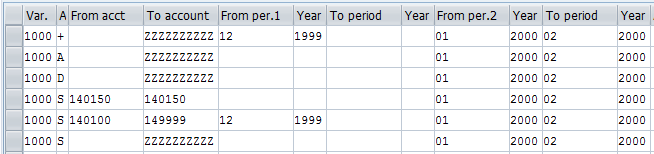
In order to understand Posting Period Variant, it is very important to first understand Account Groups. The Account Groups differentiates various types of accounts. Given below is the list of Account Types available in SAP


Acct Type            Remarks

+                           Valid for all account types
A                          Assets
K                          Vendors
D                          Customers
M                         Material
S                           General Ledger

In above account types, the account type “+” is a special Account Type which marks perimeter for which we want to open the periods. All other Accounts Types need to have periods within the periods mentioned in “+”. The functionality of different Account Types, helps Finance Manager to open different periods for different account types.


For e.g.


·         Specify the minimum entry + to open the periods you need for all your accounts.
·         For your customer and vendor accounts, use the reconciliation accounts to specify the permitted posting periods. To do this, enter the account type in the column headed A. Then specify the permitted posting periods for the desired account number interval.
·         For account 140150, specify only the current and the following period.
·         For the interval 140100 to 149999, specify the current, the following and the previous period.

·         Open the current period and the following period for all your G/L accounts by entering an account number interval containing all account numbers.

Tip


For account types D and K, you specify the numbers of the reconciliation accounts rather than those of the customer and vendor accounts themselves. This entry determines the posting periods permitted for the sub-ledger accounts. 


Reference Material

Posting Period


Tags#

SAP Account Types, SAP Assign Posting Period Variant, SAP Posting Period Variant, 

I am SAP FICO Consultant with 7+ years of SAP experience having done 4 Projects.